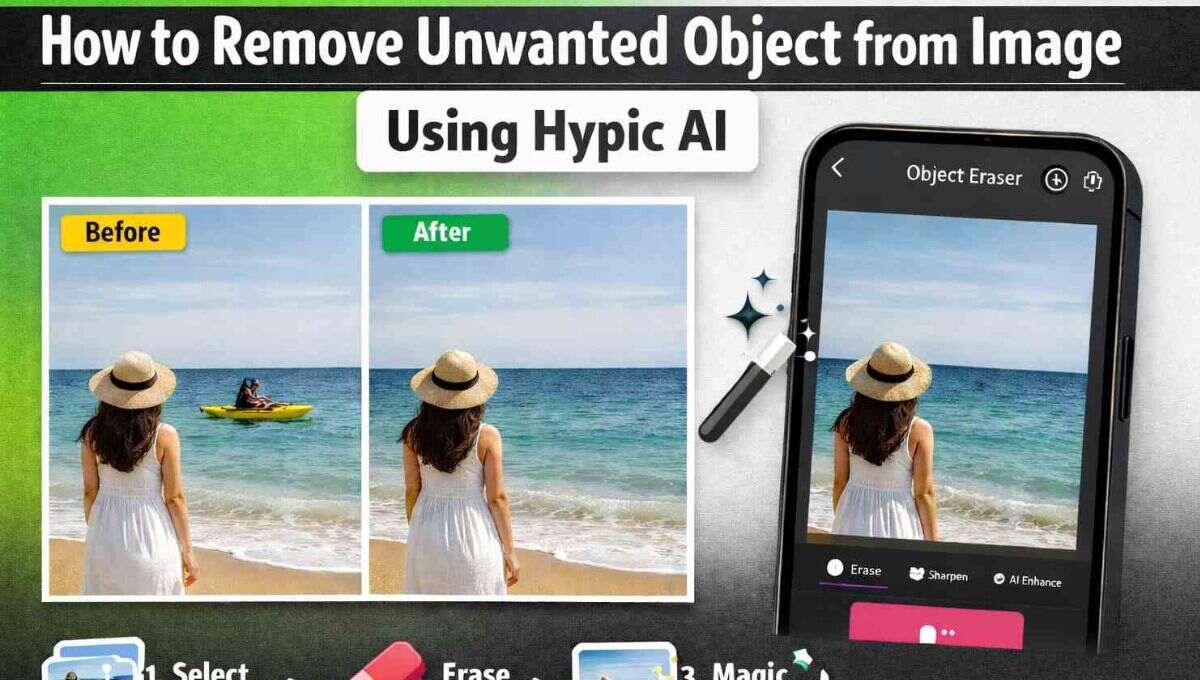
How to Remove Unwanted Object from Image Using Hypic AI
Remove unwanted objects from images using Hypic object remover. Easily erase unwanted items and make your photos memorable in seconds.
Annoyed by strangers or objects ruining your photos? Hypic AI object free remover, removes them instantly for a clean, professional look. Let’s make your images perfect.
Why Do You Need to Remove Unwanted Objects From Photos?
Photos capture our memories but sometimes useless objects sneak into the frame like strangers, animals, or clutter in the background. These distractions can take the focus away from the main subject and make your images look messy.
By deleting these objects helps your photos look premium and attention grabbing. With Hypic AI’s smart eraser tool you can quickly remove anything you don’t want in your picture. So your memories are captured perfectly and beautifully. Whether it’s a busy tourist spot or a crowded family photo, clearing distractions keeps the attention where it belongs on your subject.
Why Hypic AI object removal Is the Best Choice?
Erasing extra objects from your images can be tricky with regular editing apps. Hypic AI tool makes this process simple and efficient. You can use the manual eraser tool to paint over objects, or rely on its AI-powered object remover to automatically detect and erase unwanted items without any effort.
The app handles both small details and larger objects, like people or buildings, smoothly while keeping your background natural. With Hypic, you don’t need any additional software; it’s a complete photo editor that makes removing distractions fast, precise, and easy.
Steps to Remove Unwanted Objects from Photos
The smart eraser tools in Hypic AI Photo Editor make removing unwanted objects from your photos quick and easy. Choose the hypic object remover depending on your needs
Install Hypic AI
Download and install the official Hypic AI Photo Editor from the App Store or Google Play. Launch the app and open the photo you want to edit.
Enhance Your Photo
Tap on the Enhance option to improve your photo’s quality before removing any objects. This ensures better results and a cleaner background.
Access the Eraser Tool
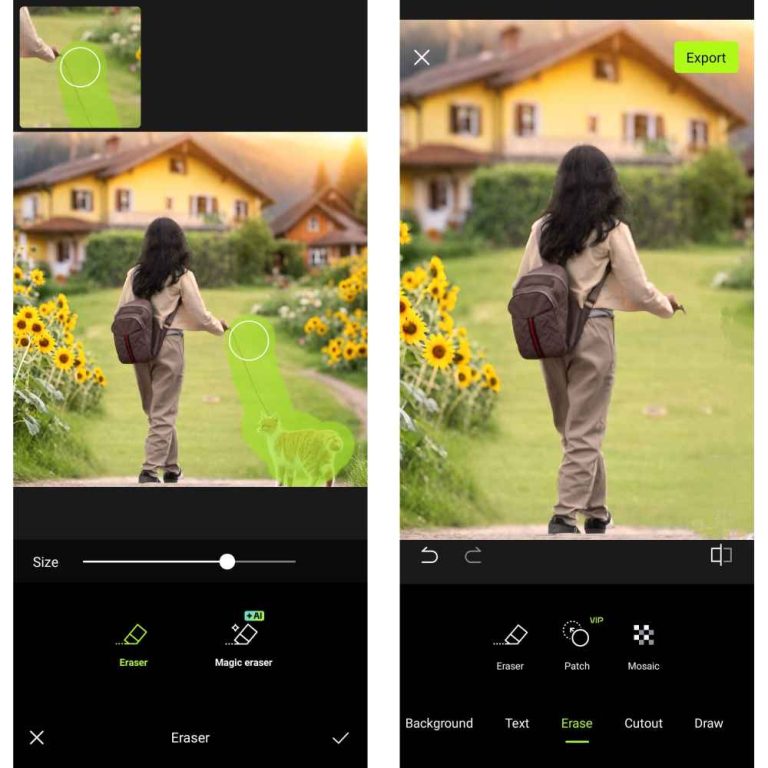
Swipe through the tools section to find the Erase option. You can select either the AI object removal or Hypic eraser tool depending on your preference.
Remove Unwanted Objects
Adjust the brush size and carefully paint over the object you want to remove in a manual eraser.
Tap on the object and Hypic AI will automatically detect and erase it for you in the AI eraser.
Save Your Photo
Once the unwanted object is removed, tap the tick icon or Save to apply the changes. Your photo is now clean, distraction-free, and professional looking.
Use Hypic Magic Eraser Like a Pro
Hypic’s Magic Eraser is an AI-powered object remover. It automatically detects unwanted items with no manual painting needed. But to get perfect results, here are some tips and tricks that many users don’t know:
Enhance Before Removing Objects
Always tap the Hypic Enhance option before using Magic Eraser. This improves image clarity and ensures the AI detects objects accurately.
Select Multiple Objects Quickly
You can tap on multiple unwanted items one after another, then hit Erase to remove all selected distractions at once.
Zoom for Small Details
For tiny objects like wires, pens, or small background items, pinch to zoom and then use Magic Eraser. The AI can detect even small details when you focus closely.
Combine Eraser With Brush
For tricky areas where the AI misses spots switch to the manual eraser tool and paint over those areas for a flawless result.
Conclusions
Hypic AI makes removing unwanted objects from photos fast and easy. With tools like the Magic Eraser and manual eraser, you can quickly erase distractions and create clean professional looking images in seconds.
For the easiest download and all the latest features of Hypic AI, visit hypicapk and start editing your photos like a pro today. Don’t let distractions ruin your memories—bring your photos to life with Hypic AI!